


Bad workflow statuses make work look organized while hiding confusion, delay, and ownership gaps.
Workflow statuses are the labels that tell a team where work sits, what should happen next, and who is responsible for moving it forward. When they are designed well, a status is not just a column on a board. It is a small operating rule for how work enters the system, changes hands, gets reviewed, stalls, finishes, or reopens.
This matters because most business teams do not fail from lack of activity. They fail because active work is hard to read. A request says “in progress” for two weeks, but nobody knows whether it is waiting on a customer, blocked by legal, under review, or simply forgotten. Better status design makes the real condition of work visible.
What’s in this article?
- What workflow statuses should mean in a business process
- How to choose statuses that support ownership and flow
- A practical status model teams can adapt
- Common mistakes that create reporting noise
- How Workhint fits when statuses need to become a live work system
Why workflow statuses matter
Atlassian’s Jira workflow guide defines a status as the place a work item occupies in the workflow, with transitions representing the movement from one status to another. Oracle’s business process documentation similarly describes a record status as the position a form has at a point in the process. The practical lesson is simple: a status should describe a real state of work, not a vague mood.
For business teams, statuses affect more than reporting. They shape how intake is triaged, when approvals are required, when handoffs occur, when work becomes blocked, and which metrics leadership can trust. If the statuses are sloppy, the dashboard will be sloppy too.
Start with the work, not the software
Do not begin by copying the default statuses in your project tool. Begin with the actual path work follows from request to outcome. Interview the people who submit work, do the work, review it, approve it, and depend on the output. Look for the points where the work changes condition.
A good status usually answers one of four questions: has the work been accepted, is someone actively working on it, is it waiting on a decision or dependency, or is it complete enough to close? If a label does not answer one of those questions, it may be a note, priority, owner field, or tag instead of a status.
Workflow statuses: the operating model
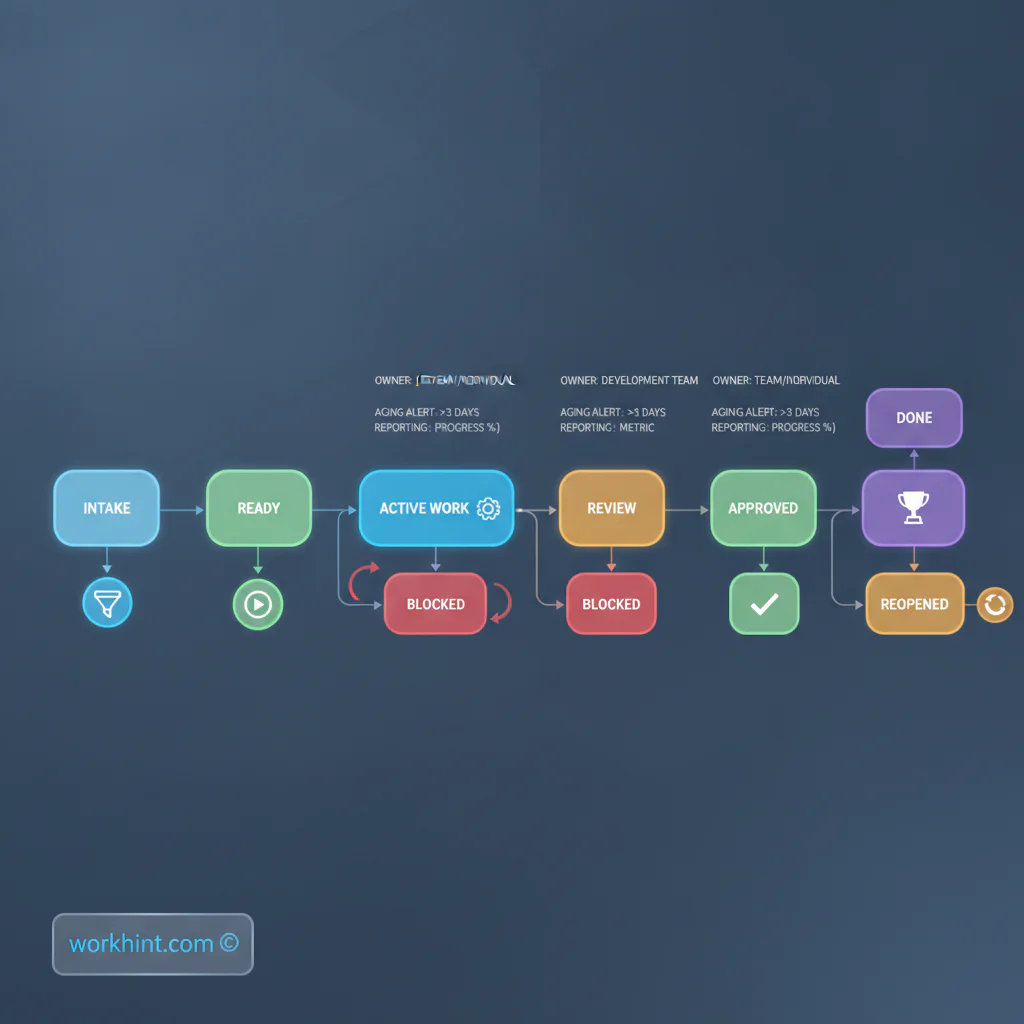
Use a status model that is simple enough for daily use but precise enough to expose delay. The Lean Enterprise Institute defines visual management as placing work and performance indicators in plain view so the system can be understood quickly. Most business workflows need fewer statuses than teams think, but each status needs a definition, entry rule, exit rule, and owner behavior.
| Status | Meaning | Required rule |
|---|---|---|
| New | Submitted but not yet accepted | Must include minimum intake fields |
| Ready | Accepted and ready to be worked | Owner, priority, and due expectation are clear |
| In progress | Someone is actively working | Only use when real work has started |
| Waiting | Paused for input, approval, or dependency | Must name what is missing and who owns it |
| Review | Output is ready for validation | Reviewer and acceptance criteria are defined |
| Approved | Decision-maker accepted the work | Approval record is captured |
| Done | Outcome delivered and closed | Completion condition is met |
| Reopened | Closed work returned for correction | Reason and new owner are recorded |
How to define workflow statuses step by step
- Map the real path. Write down the actual sequence of work from submission to completion. Include reviews, approvals, dependencies, exception handling, and rework.
- Separate states from attributes. Status should describe position in the process. Priority, risk, customer type, region, and department are usually fields or tags.
- Name each status in plain language. Use labels that people outside the system can understand. “Pending stakeholder validation” may be accurate, but “Waiting for approval” is easier to use.
- Define entry and exit criteria. For every status, state what must be true before work enters it and what must be true before work leaves it.
- Assign owner behavior. Decide who acts while work is in that status. A status without a responsible role becomes a parking lot.
- Add aging and escalation rules. Decide when a status becomes stale. For example, “Waiting for approval” might escalate after three business days.
- Connect statuses to reporting. Use the model to track cycle time, blocked time, rework, review load, approval delay, and completion rate.
Make status changes meaningful
Microsoft’s Power Apps documentation shows how workflow steps can change status or stop a workflow with a defined outcome. That is a useful reminder: status changes should represent business events. Moving a request to “Review” should mean the work is actually ready for review, not that someone hopes to look at it soon.
Use transitions to control quality. A procurement request should not move from New to Ready if vendor details are missing. A customer onboarding task should not move to Done until required documents, access, kickoff notes, and handoff items are complete. The status model should protect the process from false progress.
Common mistakes
- Too many statuses. More labels can make work harder to interpret. Merge statuses that trigger the same owner action.
- No blocked state. If blocked work stays “in progress,” teams cannot distinguish effort from waiting time.
- Using status as priority. “Urgent” is not a process state. Keep priority separate.
- No reopen rule. Reopened work should capture why the original completion failed.
- No aging rule. A workflow without stale-work alerts silently normalizes delay.
Where Workhint fits
Workhint fits when workflow statuses need to become more than labels in a tool. A team can describe the operating process it wants to run, then use Workhint to shape the roles, intake fields, permissions, assignments, approvals, documents, schedules, escalation rules, and reporting around that process.
For example, a service delivery team could turn the status model above into a live system where new requests require complete intake, Ready items are assigned by capacity, Waiting items trigger reminders, Review items route to the right approver, and dashboards show blocked time by owner or stage. The value is not the label itself. The value is the operating behavior attached to the label.
FAQ
How many workflow statuses should a business process have?
Use the fewest statuses that still show meaningful movement and delay. Many business workflows work well with five to eight core statuses, plus a clear blocked or waiting state.
What is the difference between a status and a workflow stage?
A stage is often a broader part of the process, such as review or delivery. A status is the current condition of a specific work item inside that stage, such as Waiting for approval or Reopened.
Should every team use the same workflow statuses?
No. Shared language helps, but the statuses should match the work. Finance exceptions, client onboarding, hiring approvals, and product requests usually need different state definitions.
How do workflow statuses improve dashboards?
Clean statuses make dashboards more trustworthy. They let leaders see active work, waiting time, review load, stale items, reopen rates, and where the process needs attention.
Conclusion
Workflow statuses are small design decisions with large operational consequences. Define them around real work, clear transitions, owner behavior, and measurable outcomes. When the model is clear, teams can see what is moving, what is stuck, who needs to act, and where the system should improve next.
Leave a Reply